Permissions
PastePal needs a few system permissions to work correctly. Each one covers a different part of how the app interacts with macOS.
Accessibility
PastePal uses Accessibility permission to send a paste signal to the active app when you select a clip. Without it, PastePal can copy to your clipboard but cannot trigger the paste action automatically.
macOS 27 and later
In macOS 27, Apple renamed this permission list to Device Control and Data Access. It still lives under Privacy & Security.
To grant it:
- Open System Settings
- Go to Privacy & Security > Device Control and Data Access
- Turn on PastePal, or click + to add it from the Applications folder
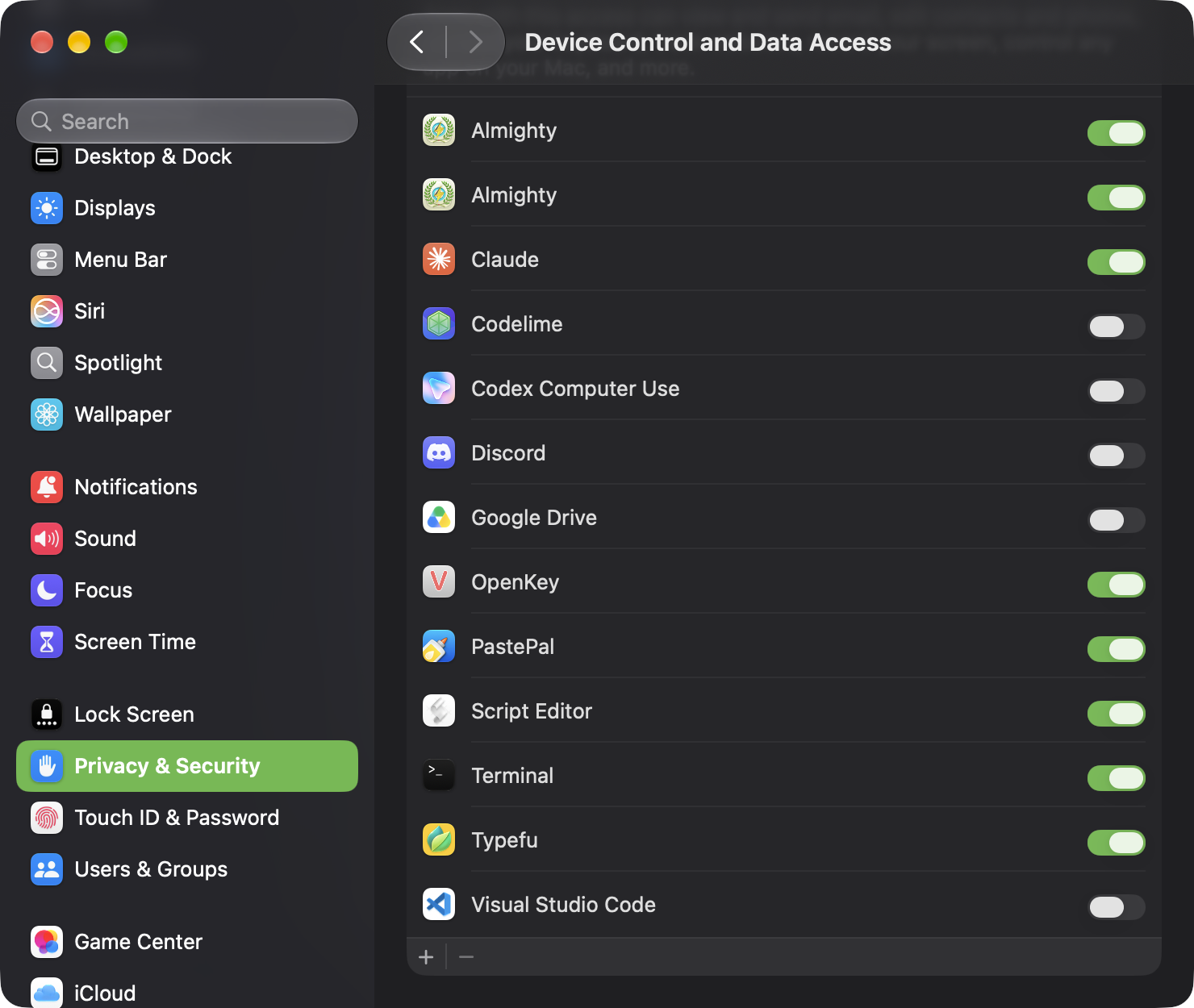
Note: The Accessibility item in the left sidebar of System Settings is a different place. It holds features for you, like Zoom, VoiceOver and Pointer Control, and it has no list of apps. If you see options like “Double-click to paste” there, you’re in the wrong spot. Head to Privacy & Security instead.
macOS 26 and earlier
To grant it:
- Open System Settings
- Go to Privacy & Security > Accessibility
- Enable PastePal, or click + to add it from the Applications folder

Screen Recording
Screen Recording permission is required for the Capture Text feature, which lets you draw a region on screen to extract text from any visible content. PastePal only captures when you explicitly trigger the action; it does not record your screen continuously.
To grant it:
- Open System Settings
- Go to Privacy & Security > Screen Recording
- Enable PastePal
Paste from Other Apps
Starting with macOS 15.4, macOS asks before an app reads the clipboard in the background. If PastePal isn’t allowed, you’ll see a “Paste from Other Apps” popup each time it reads the clipboard. PastePal only reads the clipboard to save your clips, and everything stays on your Mac.
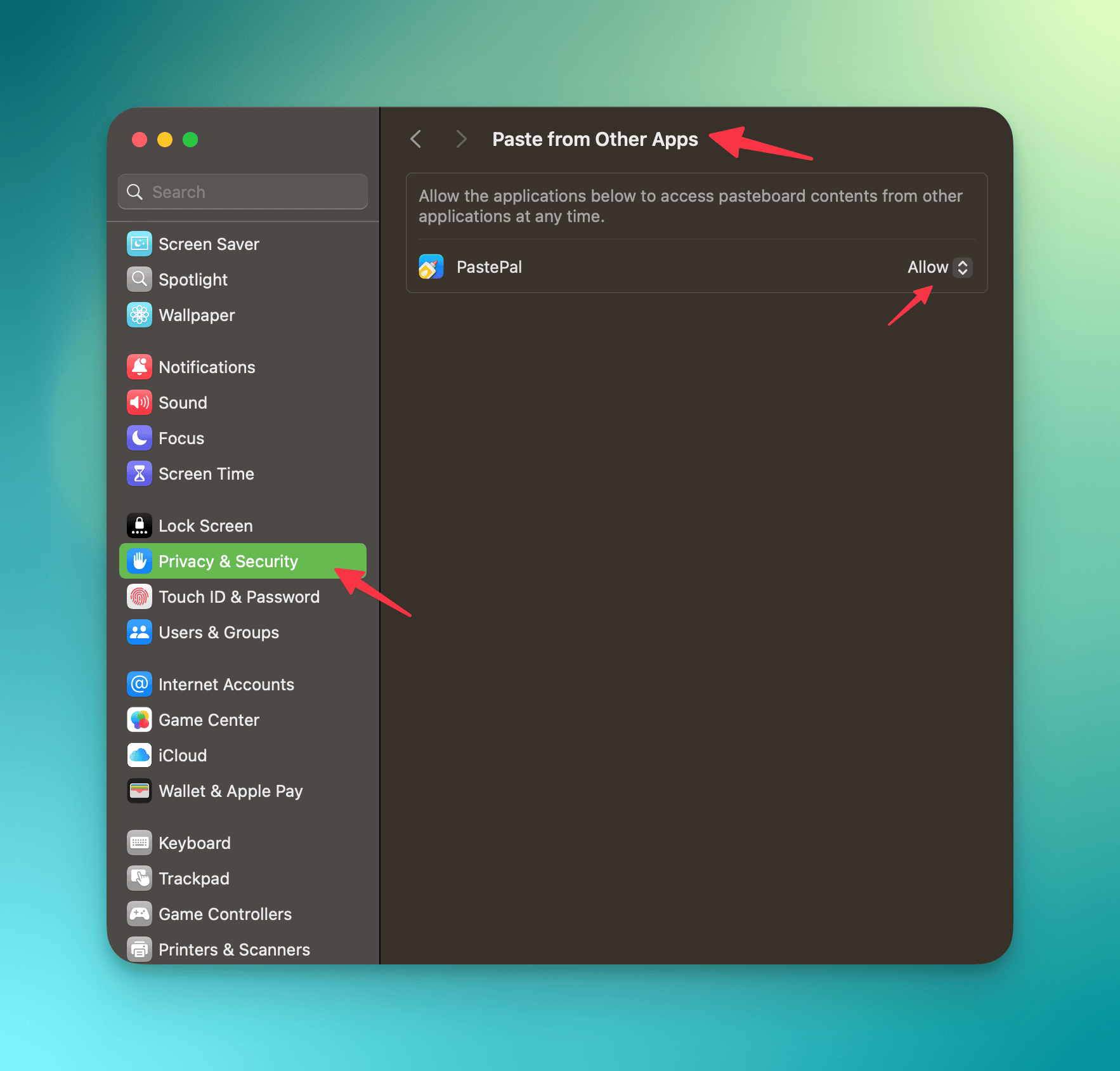
To allow seamless access:
- Open System Settings
- Go to Privacy & Security > Paste from Other Apps
- Set PastePal to Allow, or click + to add it from the Applications folder
You may need to restart PastePal afterwards. This setting only exists on macOS 15.4 and later.