Quick Start
1. Scan
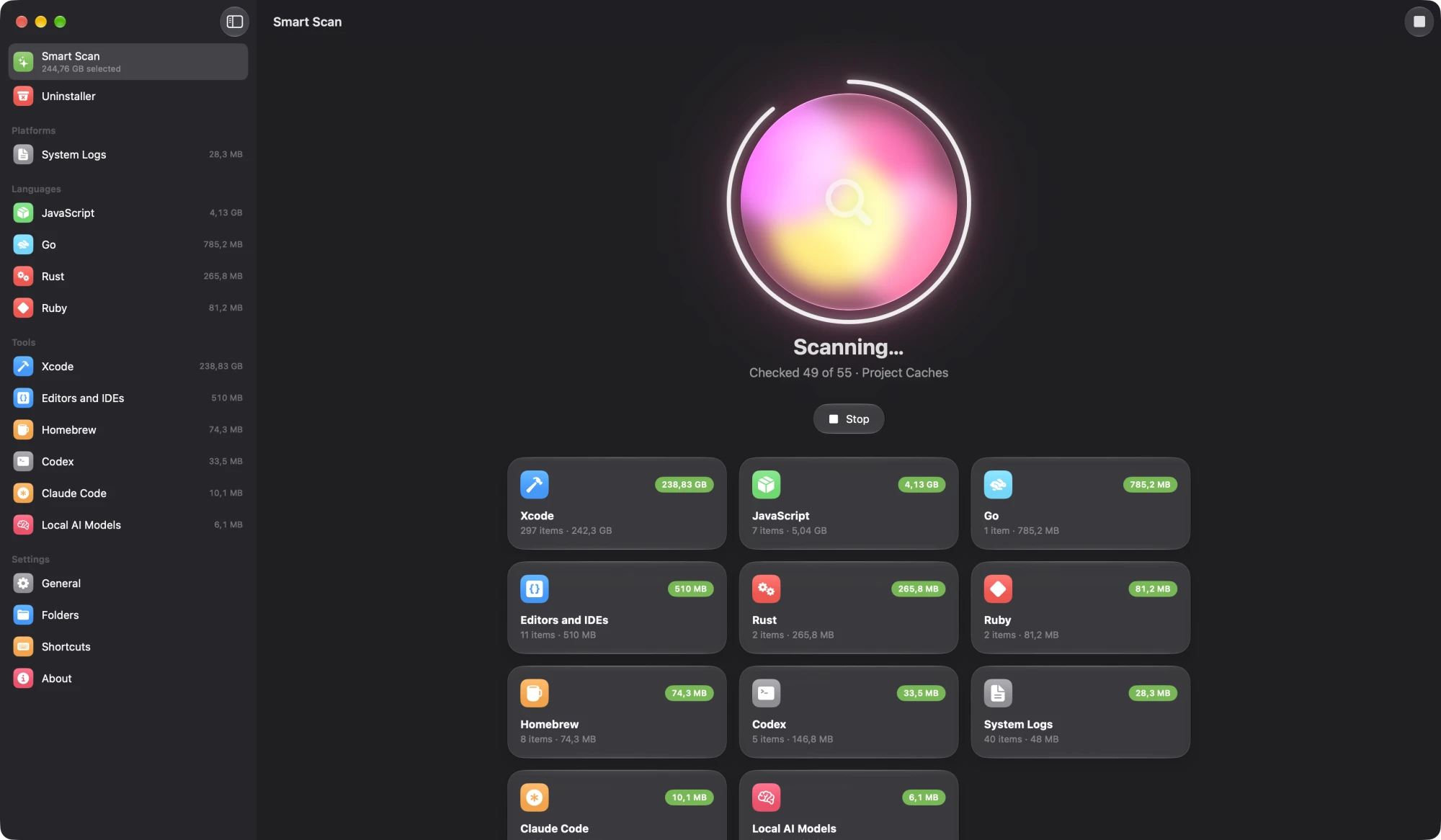
Open Cleana and click Scan (⌘R). The orb spins while Cleana checks each tool. When it’s done, the sidebar lists what it found under Platforms, Languages and Tools, biggest first. Anything that found nothing is hidden.
2. Review
Click a category to see its cards. Each card has a checkbox to select everything in it, and a click opens the list of items with their size and last use. Right-click an item to Show in Finder.
Cleana selects only what’s safe to remove:
- Caches that tools download again, like npm, Homebrew or Gradle.
- Build output in projects you haven’t touched for a while, like
node_modulesor Cargotargetfolders. - Old Claude Code sessions and checkpoints. Memory is kept.
Big downloads you might still want, like Xcode Archives, Hugging Face and LM Studio models, Python virtual environments and Node versions, are listed but not selected.
3. Clean
Click Clean (⌘⌫) and confirm. Items go to the Trash, so you can put them back. Empty the Trash to get the space back.
To skip the Trash, turn on Delete immediately in General. The Go module cache is always deleted directly because Go makes it read-only.
4. Project folders
Cleana looks for build output in common code folders like ~/Developer, ~/Projects and ~/Code. Change them in Folders.
5. Settings
- General: Launch at login, ask before cleaning, delete immediately, automatic updates.
- Shortcuts: Record a global shortcut to show Cleana from anywhere.