Uninstaller
Removing an app by dragging it to the Trash leaves its caches, preferences and data behind. The Uninstaller finds them too.
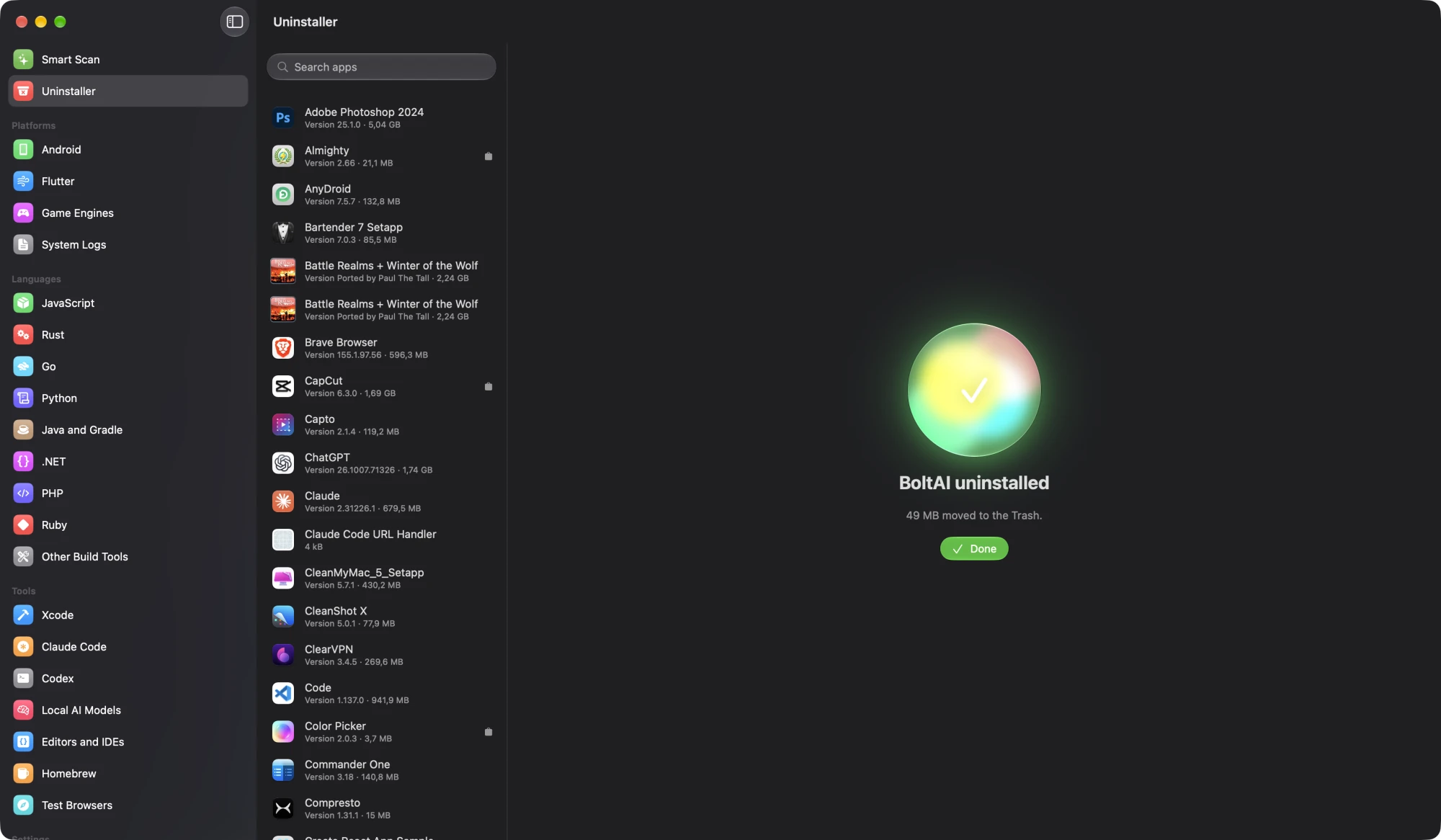
1. Pick an app
Open Uninstaller in the sidebar and choose an app, or search by name or bundle id. Apple’s own apps aren’t listed.
2. Review what it left
Cleana lists the app and everything it left, grouped by kind: Application Support, Caches, Preferences, Containers, Group Containers, Cookies and Web Data, Saved State, Logs, Launch Agents and more.
- Files are matched by the app’s bundle id and app groups, so other apps’ files stay where they are.
- A folder named exactly after the app shows a Name match badge. Check it before removing.
- Items marked Password live in system folders and need an administrator password.
3. Uninstall
Click Uninstall and confirm. Cleana quits the app first, then moves everything to the Trash. Items that need a password are moved in one step after you enter it.
Full Disk Access
macOS protects some app data, like containers and cookies. Without Full Disk Access their size shows as —, and removing them may not work. Click Open Settings in the banner, turn on Cleana under Full Disk Access, then come back. Cleana checks again when it becomes active.