Settings
PastePal’s settings cover how it captures, displays, organizes, and syncs your clipboard history. You can open them via the gear icon in the Side Window, from the menu bar, or by pressing Cmd+, when the Side Window is focused.
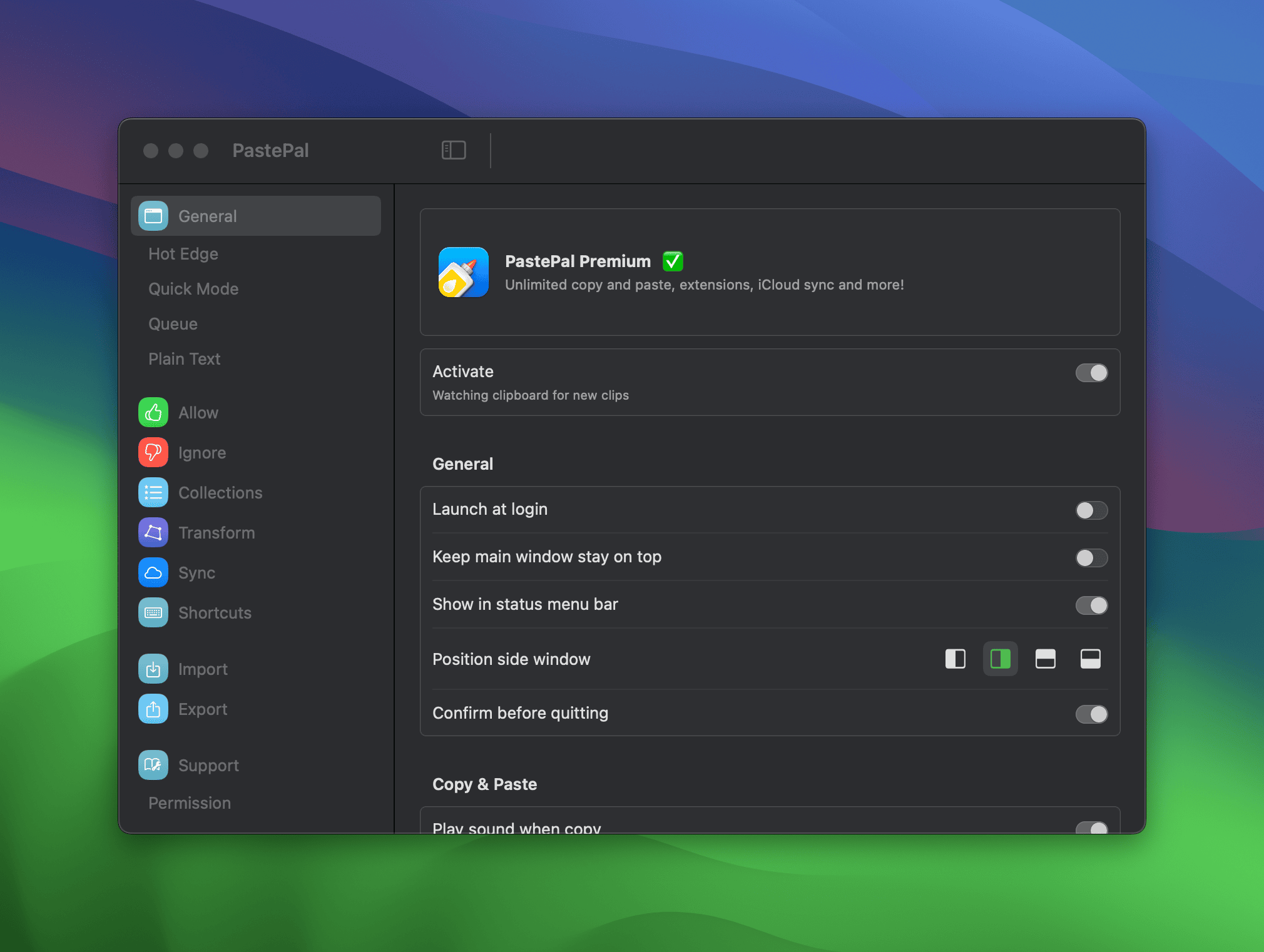
General
General settings control the core behavior of the app. You can set PastePal to launch at login, choose whether it shows a menu bar icon, and pick the default position of the Side Window (top, bottom, left, or right edge). You can also configure what happens when you double-click a clip and whether the app asks for confirmation before quitting.
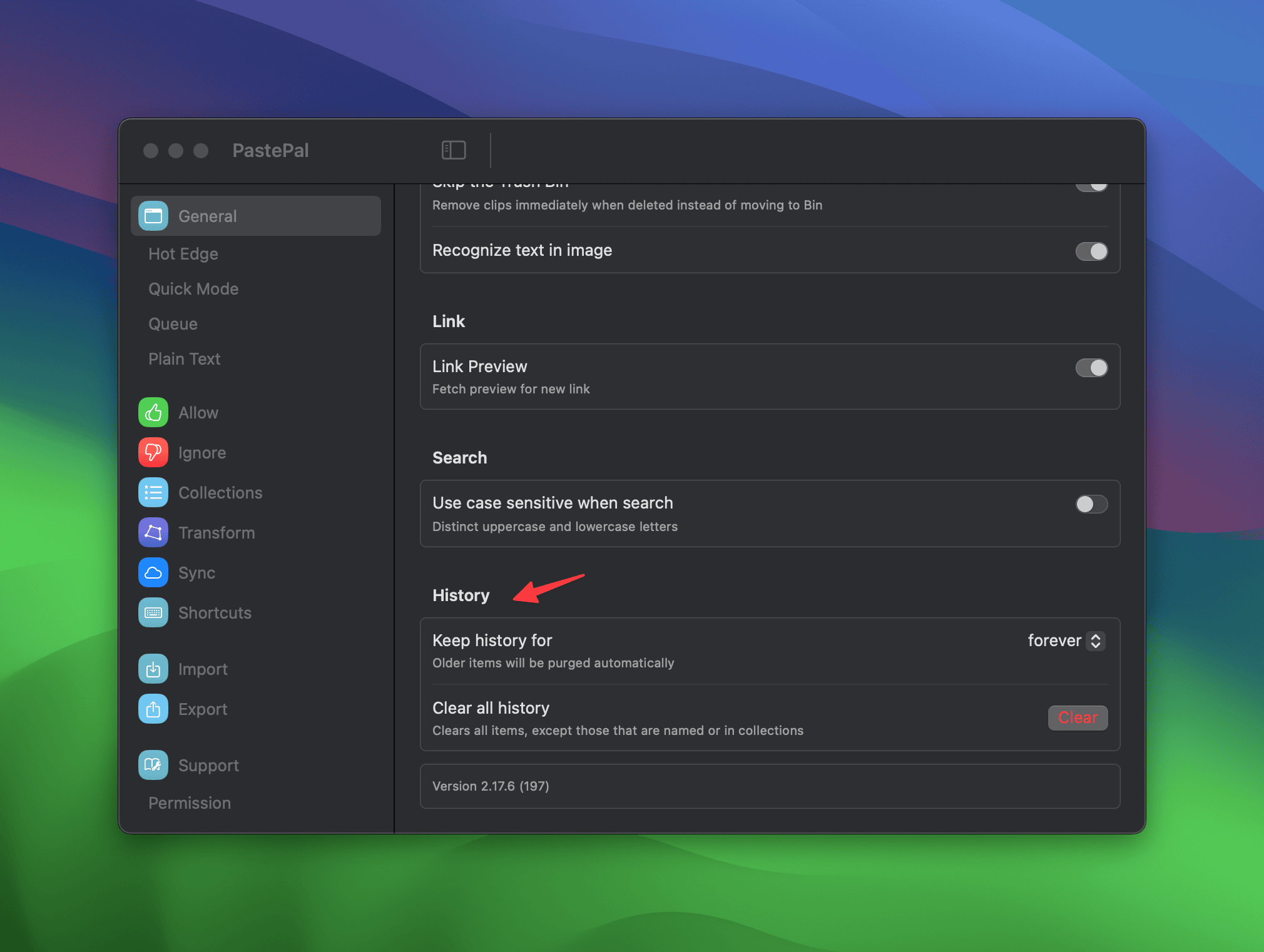
The history section in General lets you set how long clips are kept and how often old history is cleaned up automatically. Clips that are named, locked, or added to a collection are excluded from automatic cleanup.
Allow
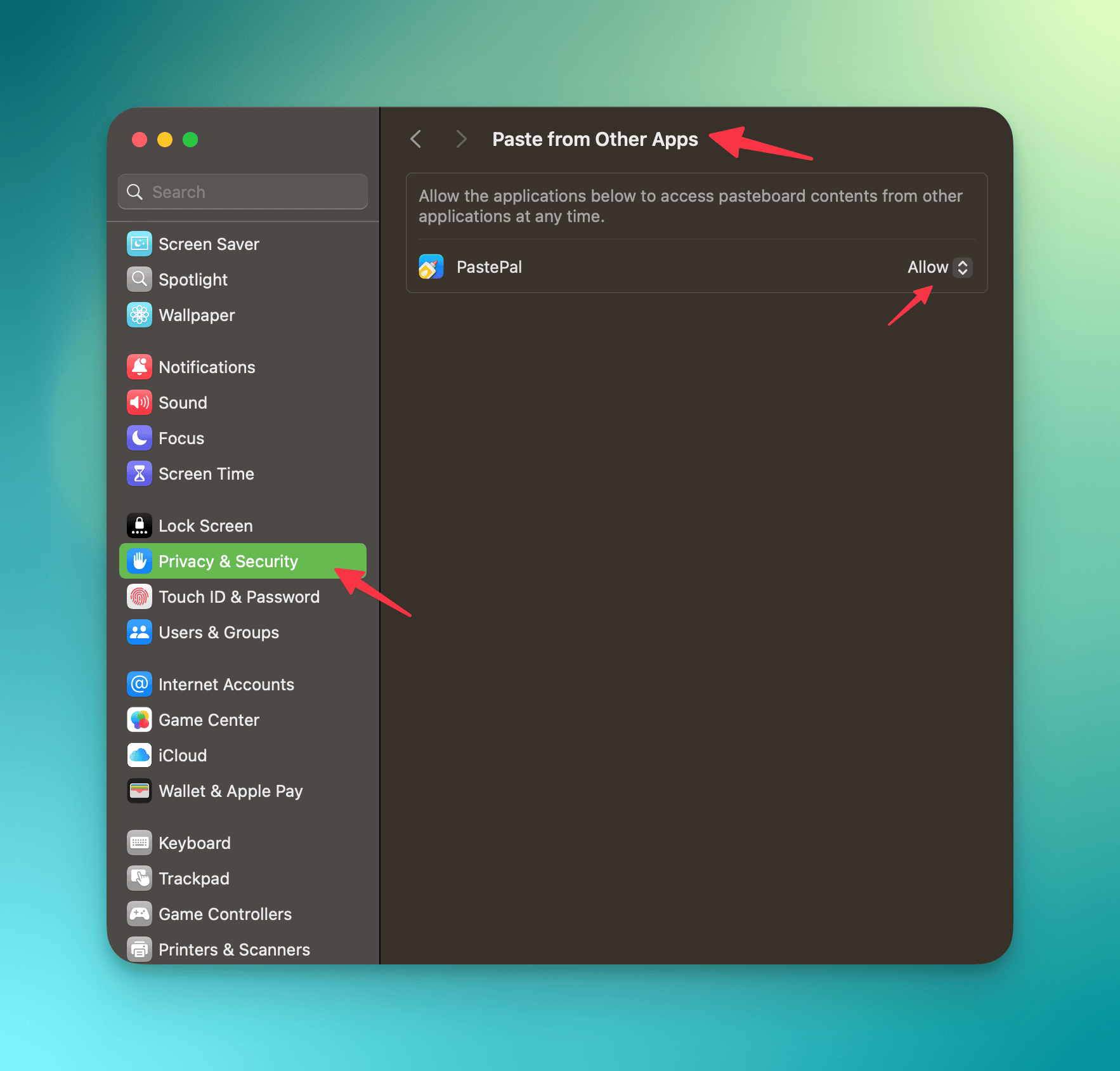
The Allow list tells PastePal which apps it should actively track. By default, PastePal captures from all apps. When you add apps to the Allow list, it switches to an exclusive mode and only saves clips from those specific apps.
Ignore
The Ignore settings let you exclude content from being saved. You can ignore specific apps, certain content types (such as files or colors), or clips that match a pattern you define. This is useful for keeping sensitive data like passwords out of your history.
Collection
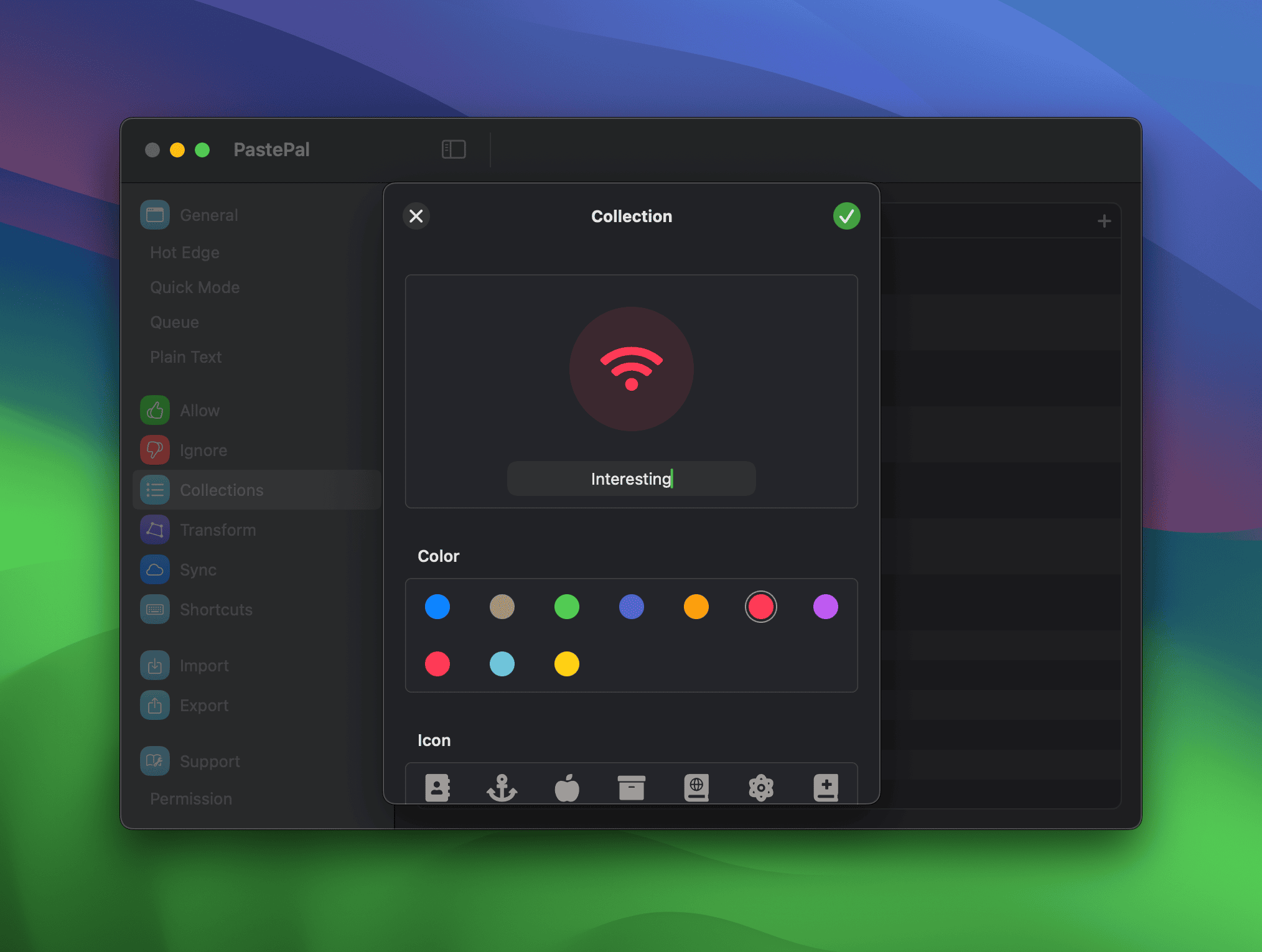
The Collection settings let you create, rename, reorder, and delete collections. Collections appear in both the Main Window and the Side Window for quick access to your most-used clips.
Transform
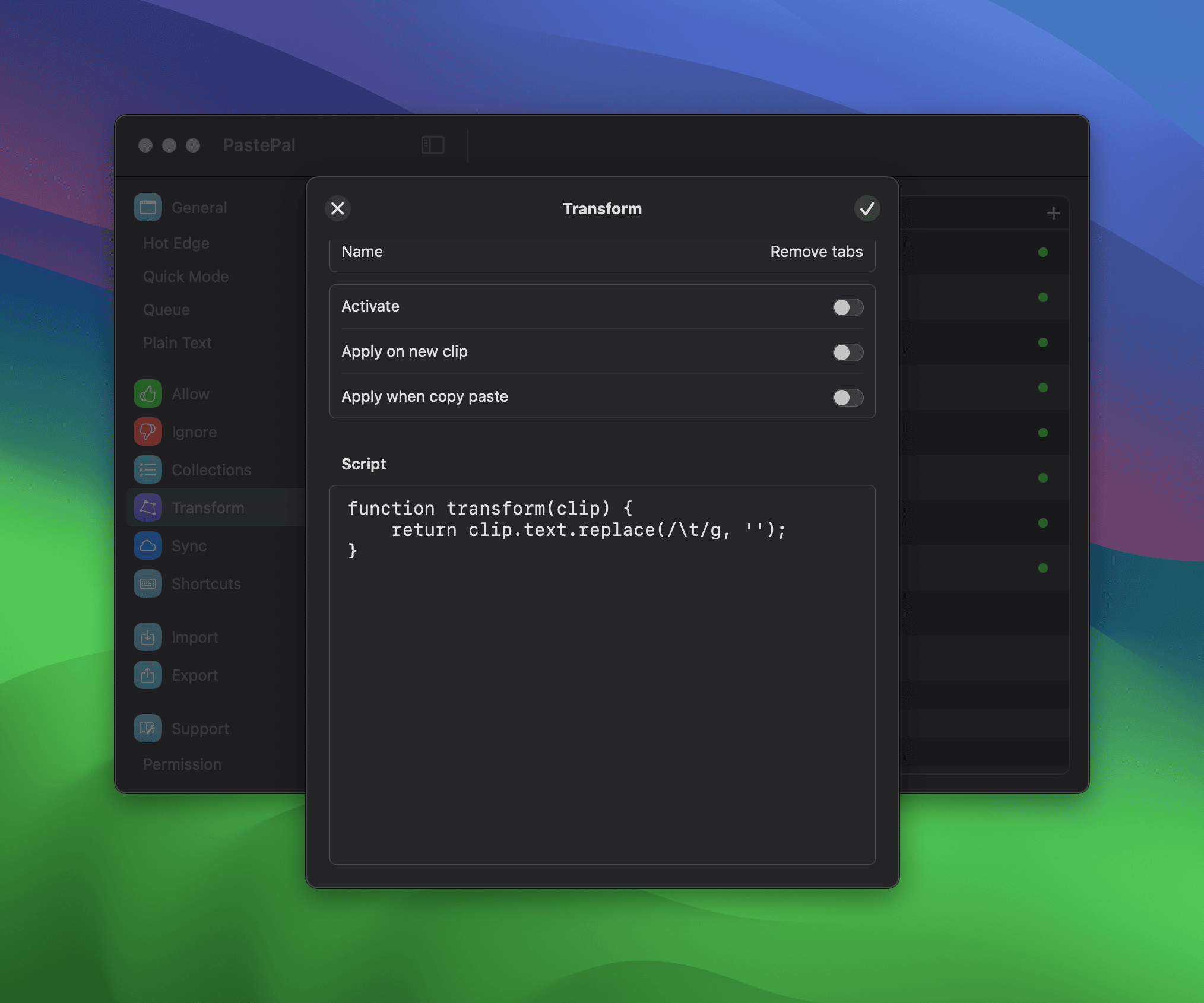
Transforms are text processing functions that run on clips when they are saved, or at paste time. PastePal includes several built-in transforms, including case conversion, URL encoding, and code formatting. You can also write custom transforms in JavaScript using the transform(clip) function.
Sync
The Sync settings show the current iCloud sync status and let you enable or disable syncing. You can also enable image syncing via iCloud Drive here, which saves copied images across your devices. See the iCloud Sync page for more detail.
Shortcuts
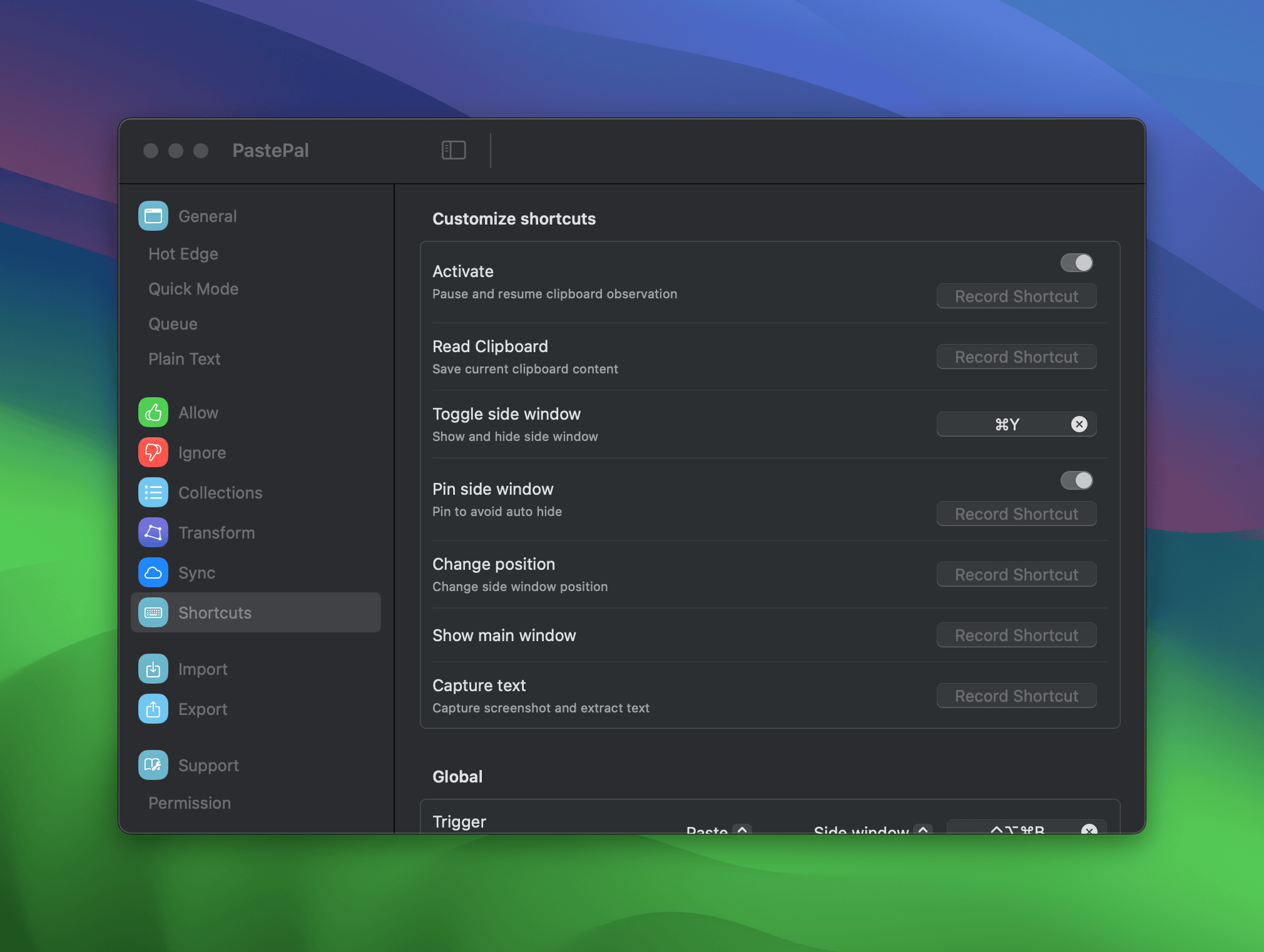
The Shortcuts settings let you customize both global and local keyboard shortcuts. Global shortcuts work system-wide; local shortcuts work inside the Side Window. See the Keyboard shortcuts page for a full breakdown.
Plain text
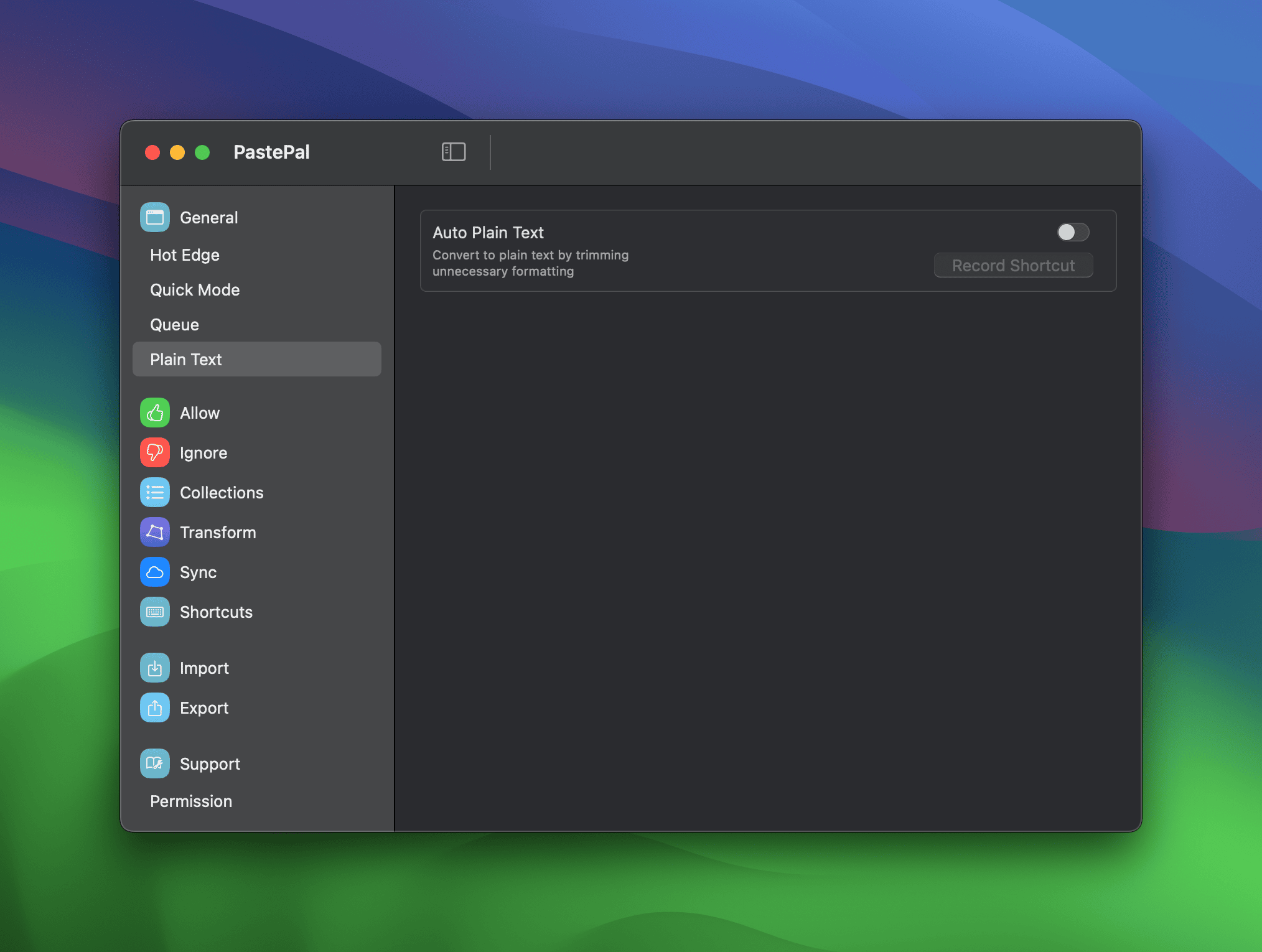
The Plain text settings control when PastePal automatically strips formatting from clips. You can set it to always save as plain text, or only strip formatting at paste time.
Recognize text
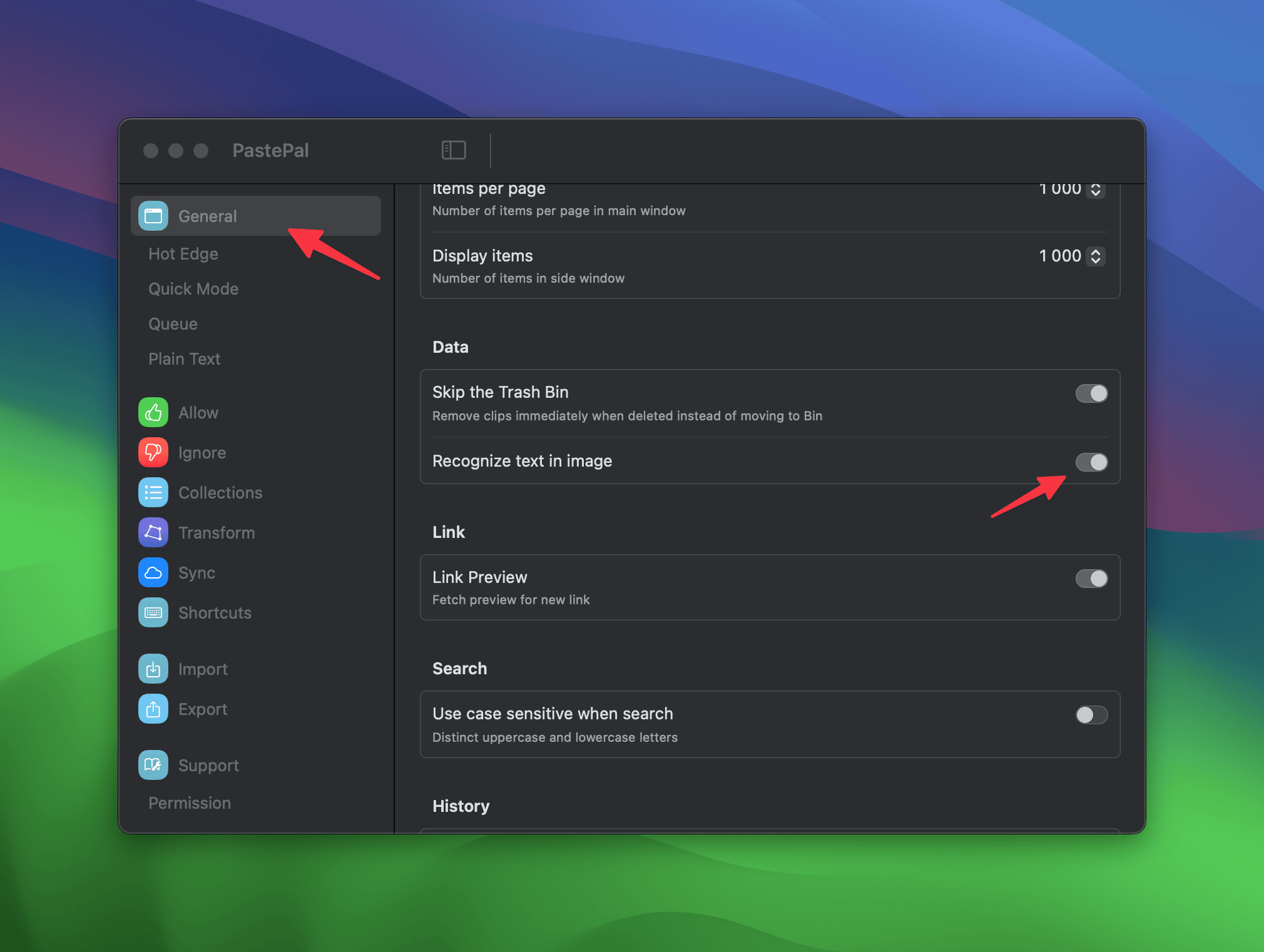
This setting enables automatic OCR on images you copy. When turned on, PastePal extracts any visible text from a copied image and stores it alongside the image, making it searchable. See Recognize text in image for details.
Permissions
The Permissions section shows the status of each system permission PastePal needs and provides buttons to open the relevant macOS settings panel. See the Permissions page for a full explanation of each one.