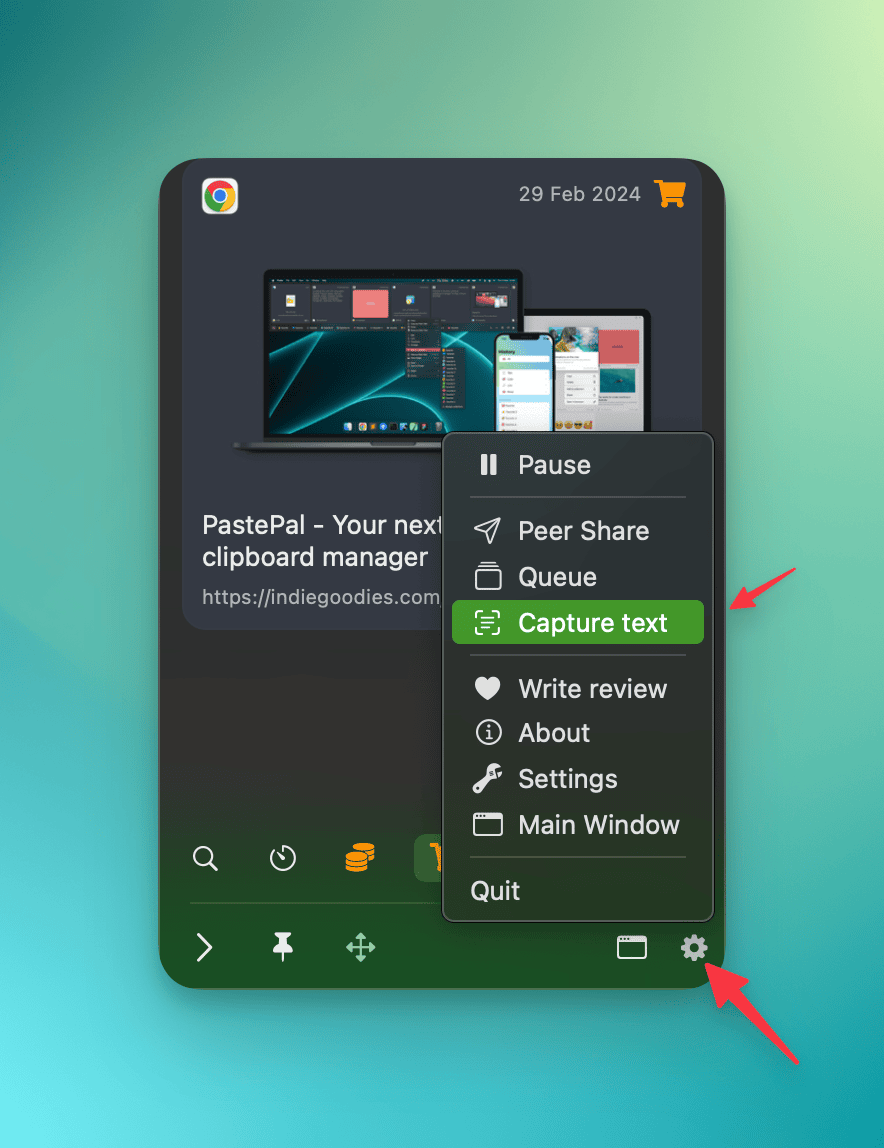
Capture text
Capture Text lets you extract text from anything visible on your screen by drawing a region around it. This works on images, PDFs, app windows, and any other content where you cannot select and copy text directly.
To use it, trigger the action from the gear menu in the Side Window, or press the keyboard shortcut you have set in Settings > Shortcuts > Global > Capture Text. The screen dims and you draw a rectangle around the text you want. PastePal reads the text, copies it to your clipboard, and saves it to history.
PastePal also detects QR codes and barcodes inside the selected region. If a code is found, the decoded value is used instead of the raw visual text.
This feature requires Screen Recording permission. If you have not granted it yet, PastePal will prompt you to do so. You can also manage it in Settings > Permissions or directly in System Settings > Privacy & Security > Screen Recording. See the Permissions page for full steps.