Quick Start
1. Install
Download MacDestroyer.dmg , open it and drag MacDestroyer to Applications. Or use Homebrew:
brew install --cask indiegoodies/tap/macdestroyerMacDestroyer lives in the menu bar. There is no Dock icon.
2. Allow Screen Recording
The first time you start a rampage, MacDestroyer explains why it needs Screen Recording: it takes one picture of your screen so you can wreck it. Press Continue, then allow it in System Settings ▸ Privacy & Security ▸ Screen Recording. You may need to reopen MacDestroyer after allowing it.
Without it the game still runs, but effects draw over your live desktop.
3. Start a rampage
Click the menu bar icon and choose Start Rampage, or press ⌃⌥⌘D from any app. You can change the shortcut in Settings ▸ Controls.
After a 3, 2, 1 countdown, click and drag to use your weapon.
| Key | Action |
|---|---|
| 1 to 9 | Pick a weapon |
| Scroll | Flip through weapons |
| R | Repair everything |
| S | Save a picture of the wreckage to Pictures |
| Esc | End the rampage |
The weapon bar at the bottom shows your weapons, how much of the screen is destroyed and your combo. Drag it by the dots on its left edge to move it.
4. Make it yours
Open Settings from the menu bar.
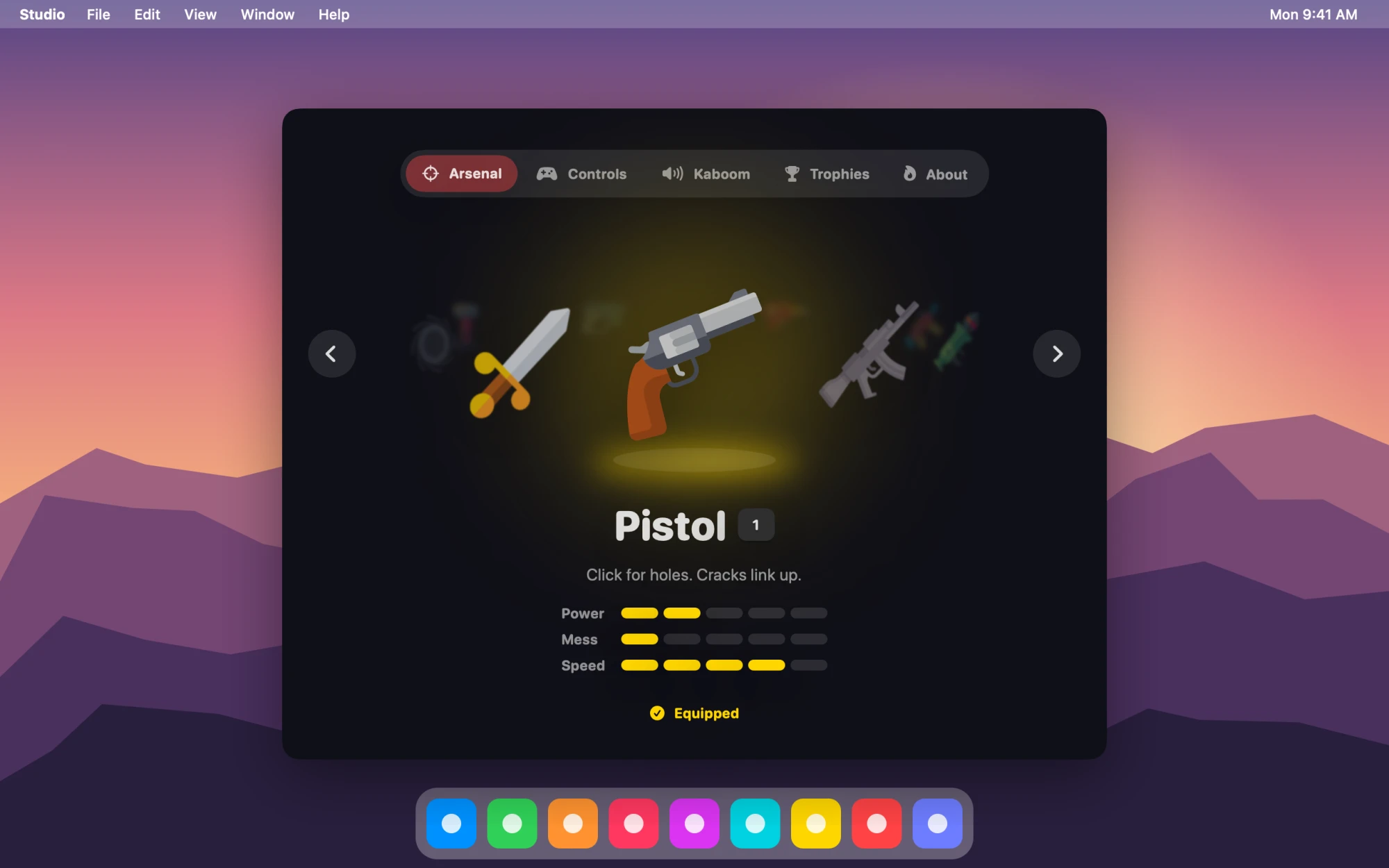
- Arsenal: Spin the ring and press Equip to choose your starting weapon.
- Controls: Change the shortcut and turn the countdown on or off.
- Kaboom: Volume, screen shake and how much debris flies.
- Trophies: Your lifetime stats and rank.